systemd-analyze blame
After years of downloading and mashing in services, I’ve noticed that my daily loadups have taken longer and longer compared to the crisp start-up I enjoyed at first boot.
This is where systemd-analyze blame can help:
Run:
| |
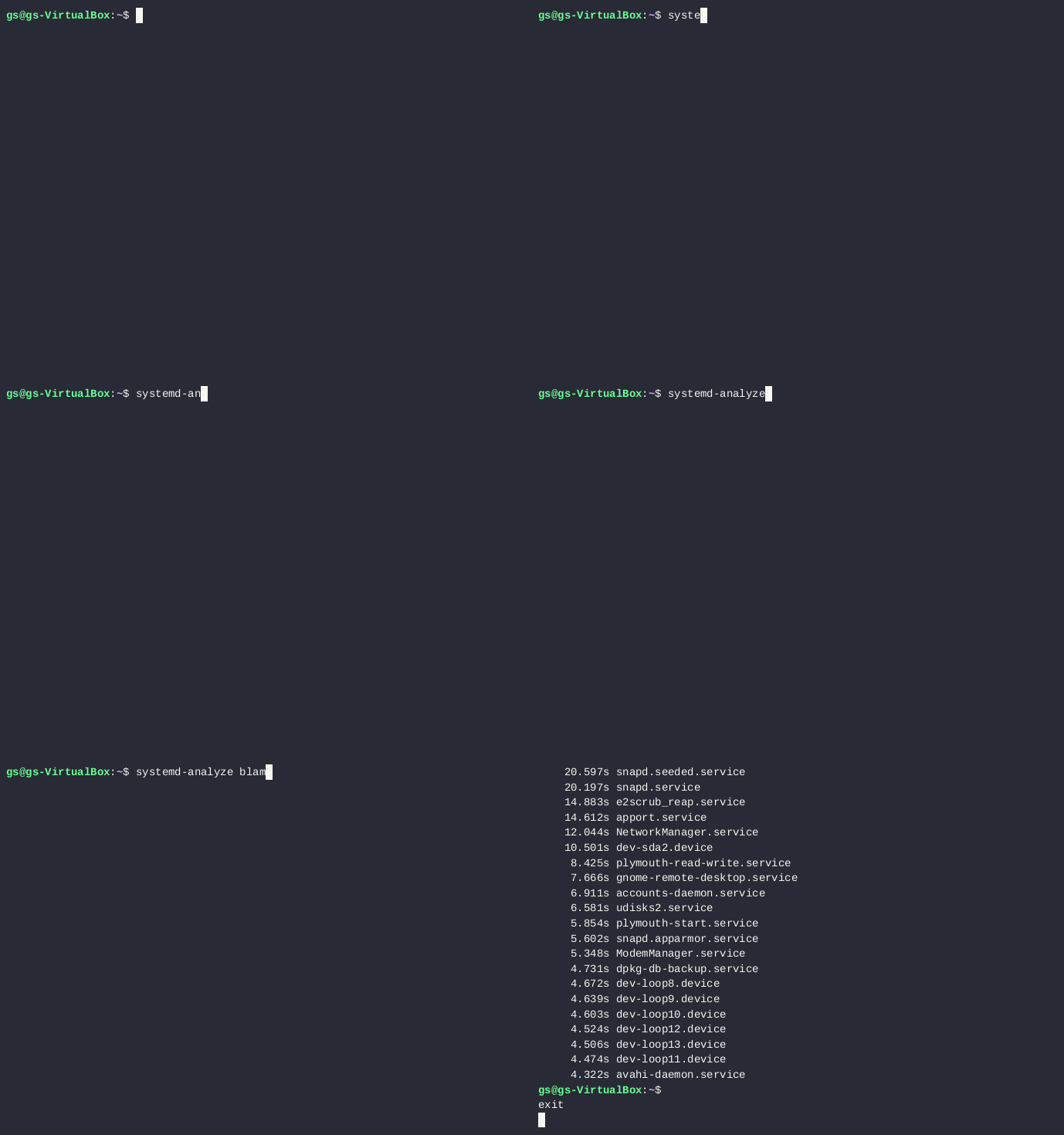
It will list out all of your services so you know who to… well blame!
ncdu
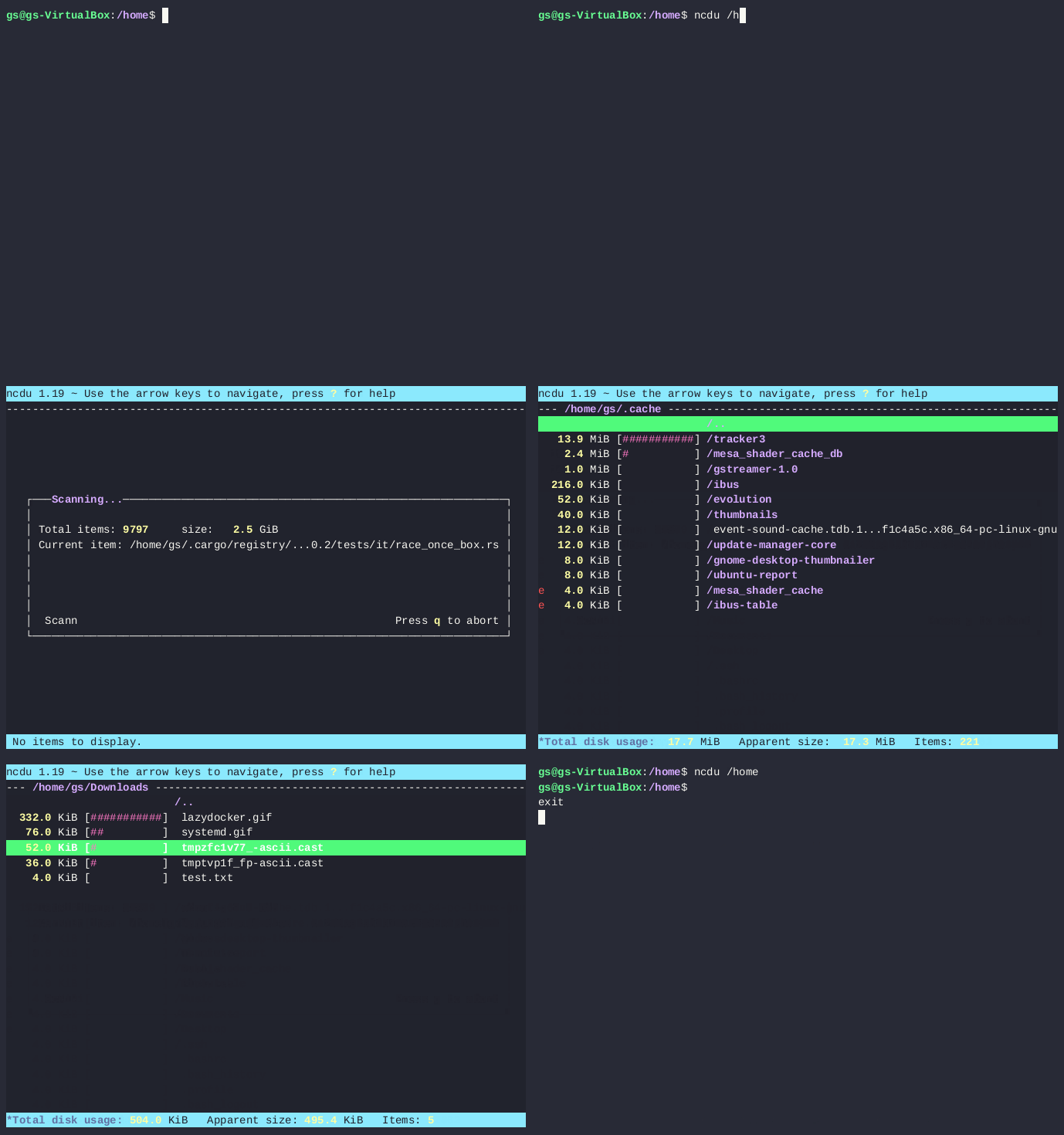
One of the biggest pains I have in my self-hosting life is figuring out how I ended up with only 50 GB left on my drive, then comes me waiting for my Linux Mintstorage GUI to index my entire drive for 15 minutes. So instead, I like to use ncdu.
ncdu install
| |
Usage
Scan full file system
| |
Scan a specific directory
| |
Scan your current directory
| |
Hotkeys
Use your keyboard’s navigation arrows to move around
dto delete a file or directoryeto show hidden or exclusive filesrto rescan your current directorybto create a shell in the directory you’re looking inqto exit out of ncdu
Shred
When you have been a Windows user, you would always forget after hitting delete over a thousand times that your stuff is really just thrown into the junk folder until your drive is due for a deep cleaning, stumbling through tech blogs on “How to clean your pc like a pro!”. Ubuntu has this feature, but they bless us with an actual delete button, but even rm essentially just does this, but allows for the space to be overwritten. It’s still recoverable, which is good to stop your mouse from eating your essay, but bad if you’re finally moving your passwords from a text file.
The solution:
| |
- This just overwrites the file
| |
- Overwrites it AND deletes it
It will overwrite a file or directory multiple times, making it unrecoverable, in an age of Kali Linux MCP servers for all ages…this might save you.
lazydocker
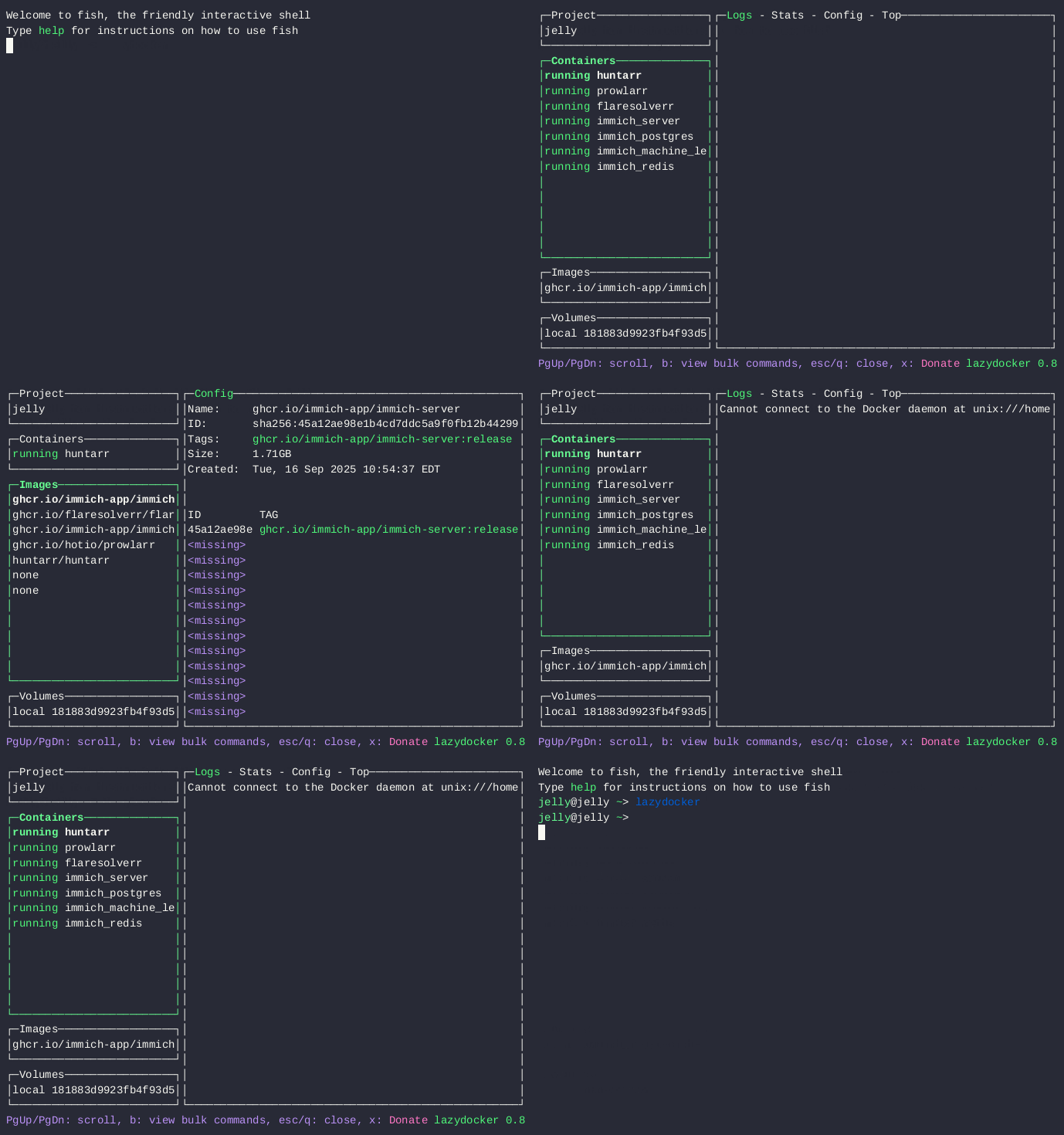
Lazydocker makes managing your containers and volumes simple, without using brute force commands or digging through terminal entries.
lazy Docker installation
There are many ways to install lazydocker:
homebrew
| |
docker (my preferred method)
| |
make sure to set your
-vpath for the actual configset deployment as an alias:
- make sure to change alias and
-vlike above
- make sure to change alias and
| |
usage
- Set an alias to run it
| |
Command clean-ups
I personally use these in my startup script to clean up my system’s old update files or to trim my Docker images that aren’t used/update them.
Clean up old package files:
| |
This deletes unused images (so if they aren't running) while not touching their volumes.
| |